@deuts great doc 
I also did some doc on the French forum, i translate it below:
The “Action Button” widget for copying data
How it works
-
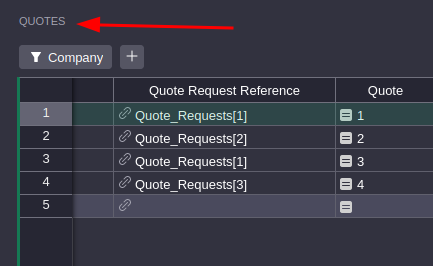
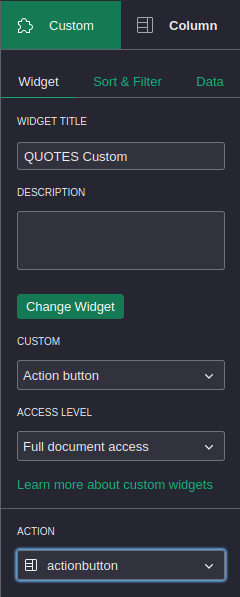
Add the custom “Action Button” widget, based on your table
-
In the creation panel, allow access to the document
To copy rows in the same table
- In your table, add a formula column, with a formula in this format:
{
"button": "Button display text",
"description": "Text displayed on mouseover
"actions":
[
"AddRecord", "TableId", None, {"Col1": $Col1, "Col2": $Col2 }
]
}
You need to replace TableId with your table’s ID, and Col1, Col2, etc. with your column IDs.
-
In the widget configuration, in the “Action” field, select this column.
-
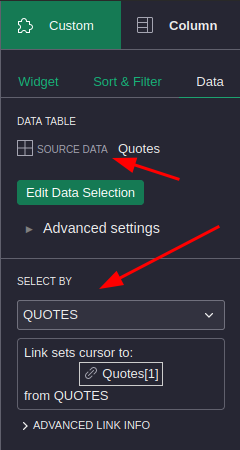
In the widget configuration, in the “Source Data” tab > Select by: choose the table from which you want to duplicate the data. This will allow the cursor to select the entire row when you click on a cell.
-
Position yourself on a row, click the action button, and your row should be added to the end of the table.
To copy simple references
Instead of copying the field directly, which references the entire row of the referenced table, you need to copy the ID of the row, via $My_Column.id
For example:
{
"button":"Duplicate",
"description":"hi",
"actions":
[[
"AddRecord",
"Data",
None,
{
"Ref": $Ref.id
}
]]
}
To copy multiple references
You must copy the list of IDs of the referenced rows and transform it into a string, via:
str($My_Column.id)
For example:
{
"button":"Duplicate",
"description":"hi",
"actions":
[[
"AddRecord",
"Data",
None,
{
"Ref_multiple": str($Ref_multiple.id)
}
]]
}
To copy multiple choices
Multiple choice columns are type “tuple”. Copying them directly won’t work, even if the destination column is also a multiple-choice column.
You must add an “L” at the beginning of the tuple.
So, we’ll first transform the tuple into a list, add the “L”, and transform the list back into a tuple. The formula is as follows:
multiple_choice = list($A)
multiple_choice.insert(0, "L")

return {
"button":"Duplicate",
"description":":)",
"actions":[[
"AddRecord",
"Table_destination_multi_choice",
None, {
"A":tuple(multiple_choice),
}]]
}
To copy rows to another table
Same as before, choosing the ID of the other table as the target table.
To copy one or more columns from one table to another
You will need to loop to copy all the rows in each targeted column. The formula will be as follows:
actions = []
records = Table_source.lookupRecords()
count = 0
for r in records:
actions.append(["AddRecord", "Target_Table", None,
{
"Name": r.Name,
"Number": r.Number
}
])
return {
"button": "Copy Table",
"description": ":P",
"actions": actions
}
Sample document here: ex - widget "Bouton d'action" - Grist
The “Action Button” widget to delete a row
Syntax:
{
"button":"Remove row",
"description":":)",
"actions":[["RemoveRecord", "TableId", rowId]]
}
Since the “actions” field is a list, you must always keep the two brackets [[]].
You can write the rowId as is, for example:
"actions":[["RemoveRecord", "TableId", rowId]]
or, for example, request to remove the last row from the table:
"actions":[["RemoveRecord", "Table_to_reduce", Table_a_reduce.lookupOne(sort_by="-id").id]]
Demo here: ex - widget "Bouton d'action" - Grist
If you want to delete a row selected in the table rather than entering the row ID, you must enter the action button formula in the linked table, link the action button widget to the table (select by), and use $id.
The “Action Button” widget to update a row
You can update one or more columns of the selected row in the table.
- In your table, add a formula column, with a formula in this format:
{
"button": "Modify columns to YES",
"description": ":)",
"actions":[[
"UpdateRecord",
"TableId",
$id,
{
"Col1": "YES",
"Col2": "YES",
}
]]
}
You need to replace TableId with your table ID, and Col1, Col2, etc. with your column IDs. - Add the custom “Action Button” widget, linked to the table (“Select by”)
-
In the creation panel, in the “Action” field, select the column containing the action button formula
-
Position yourself on a row in the table, click the action button, and your row should be updated.
Demo link: ex - widget "Bouton d'action" - Grist
Other possible actions
From grist-core/app/common/DocActions.ts at 5f0c3bd8545256b4d3310ace197aace284ce8633 · gristlabs/grist-core · GitHub, the possible actions appear to be as follows:
- AddRecord
- BulkAddRecord
- RemoveRecord
- BulkRemoveRecord
- UpdateRecord
- BulkUpdateRecord
- ReplaceTableData
- TableDataAction
- AddColumn
- RemoveColumn
- RenameColumn
- ModifyColumn
- AddTable
- RemoveTable
- RenameTable
I tested “BulkAddRecord” but couldn’t get it to work.
Multiple actions at the same time
It is possible to perform multiple actions at the same time (row duplication, addition, deletion):
{
"description": "Some description text",
"button": "Text of the button itself",
"actions": [ACTIONS_TO_APPLY],
}
With the actions field, which is a list of actions, with this format (for the most common cases):
[
["AddRecord", "TableId", None, {"Col1": Value1, "Col2": Value2, ...}],
["UpdateRecord", "TableId", rowId, {"Col1": Value1, "Col2": Value2, ...}],
["RemoveRecord", "TableId", rowId],
]
Link to the post on French forum, with screenshots : Vue personnalisée pour importer des données d'une table dans une autre - #5 par audezu - Demandes d'aide - le forum Grist