This issue with pasting formatted numbers is definitely something we need to fix. It’s already on our to-do list.
Meanwhile, there is a workaround.
In the column with dollar amounts, open the column settings, and look for “Optional formula”. There is a way to set a formula for data cleaning, which we can use to essentially strip out the formatting from numbers (like “$” or thousands separators).
Into “Optional formula”, enter this data-cleaning formula:
if not ISTEXT(value):
  return value
IFERROR(float(str(value).replace("$", '').replace(",", "")), value)
Then check the box “Apply on changes to:” and in the dropdown select “Current field” and click “OK”. As in this screenshot:
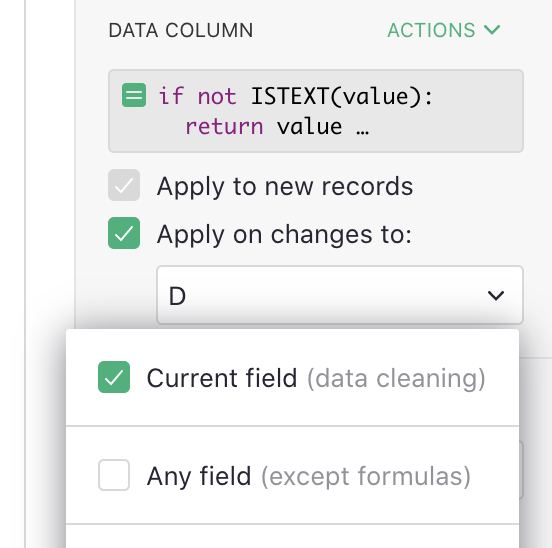
Now, pasting formatted values into this column will convert them properly to numbers.
To fix the pink values already there, select them, hit Ctrl-C to copy, then hit Delete or Backspace to clear those cells, then Ctrl-V to paste back in. On pasting, the new data-cleaning formula will apply and the numbers should paste in correctly.