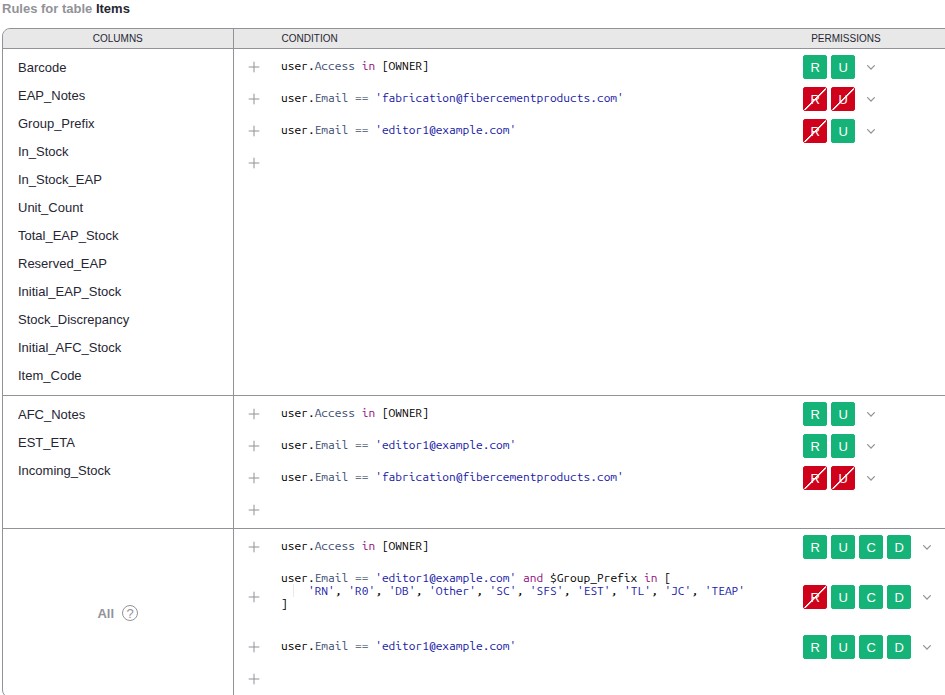
Hello all, I have these Access Rules set up for my Items page of inventory. My rows are hidden by Group_Prefix in All. The top group of Columns are hidden. My problem is that I cannot get write access to AFC_Notes, EST_ETA and Incoming_Stock through editor1@example.com. I am using this email so I can test before putting a working email in there. The Default Rules are owner all, Everyone Else Deny
John
The issue is a conflict between your row-level permissions (in the All block) and your column-level permissions (in the AFC_Notes block).
Here is a breakdown of the problem and how to fix it.
Diagnosing the problem:
- Grist’s Logic: To Update (write) to a cell, a user must first be able to Read (see) the row that cell is in.
- Your
All Rule (Row Access): You have a rule in the All columns block that is processed first for editor1@example.com:
-
Condition: user.Email == 'editor1@example.com' and $Group_Prefix in [all the columns that you specific in the screenshot]
-
Permissions: DENY Read (R), Allow Update (U), Allow Create (C), Allow Delete (D).
- The Conflict: This rule explicitly denies Read access to any row where the
Group_Prefix is in your list (‘RN’, ‘RA’, ‘DB’, etc.).
- The Result: Because
editor1@example.com is denied Read access to the entire row, they cannot see it. And if they cannot see the row, they cannot see or edit the AFC_Notes, EST_ETA, or Incoming_Stock cells within it, even though you have another rule that correctly grants Update access to those specific columns.
The row-level “Deny Read” permission is overriding your column-level “Allow Update” permission.
Solution:
You must grant Read (R) permission to the rows that editor1@example.com is supposed to be able to edit.
-
Go to the All columns rule block at the bottom.
-
Find the second rule, which starts with user.Email == 'editor1@example.com' and $Group_Prefix...
-
Look at the permissions for that rule. The R is currently red and crossed out.
-
Click the “R” icon to make it green (enabled).
The permissions for that rule should be changed from this: [DENY R] [ U ] [ C ] [ D ]
To this: [ R ] [ U ] [ C ] [ D ]
By making this change, editor1@example.com will be able to read the rows that match those Group_Prefix values. Once they can read the row, your separate (and correct) rule for the AFC_Notes, EST_ETA, and Incoming_Stock columns will successfully grant them the ability to update those fields.
Good morning Chris.
I had a reply from Grist that using the View As editor1@example.com [Editor] does actually give editor permissions and behaves just as it would when I add another person as editor. If that isn’t the case and it’s view only, I’m spinning my wheels for nothing.
I did change user.Email == ‘editor1@example.com’ and $Group_Prefix in [
‘RN’, ‘R0’, ‘DB’, ‘Other’, ‘SC’, ‘SFS’, ‘EST’, ‘TL’, ‘JC’, ‘TEAP’ to Allow All. I still cannot write/use those three columns. The ALL bottom Rules has everything green.
The Group_Prefix rows that I had blocked need to stay hidden from the customer since all of those Groups are not their product.
My challenge becomes, hiding columns (which the first 11 columns in the first group are hidden). Second, I have around 30 Group_Prefix in over 850 rows which ten of those groups rows can’t be visible to the customer. And finally third, the customer needs to be able to write to AFC_Notes, EST_ETA and Incoming_Stock which is where I run into the problem. Those three columns are Date, Text and Numeric, no formulas.
Thank you for helping.
]
No that is correct, when using View As you, the Owner, sees the document exactly from the colleague’s / selected user’s perspective.
I am going to DM you about setting up a 30-min call to go over your access rules.
Thank you Chris, meeting is set.